Working remotely as a game developer presents unique challenges that typical remote workers never face. You’re not just writing emails or crunching spreadsheets—you’re compiling massive codebases, rendering complex 3D scenes, testing performance-intensive builds, and probably sneaking in a few rounds of your favorite game during breaks. Your setup needs to handle it all without breaking a sweat.
This comprehensive guide covers everything you need to build the perfect remote game development workspace, from hardware that pulls double duty to the collaboration tools that keep distributed teams in sync. Whether you’re an indie developer working solo or part of a AAA studio’s remote workforce, you’ll find actionable advice to optimize your setup.
Why Game Developers Need Specialized Remote Setups
Unlike general software developers or digital artists, game developers face a unique set of demands that require careful hardware and workflow planning. Whether you’re creating the next indie masterpiece or working on AAA titles, your setup needs to support both creation and testing.
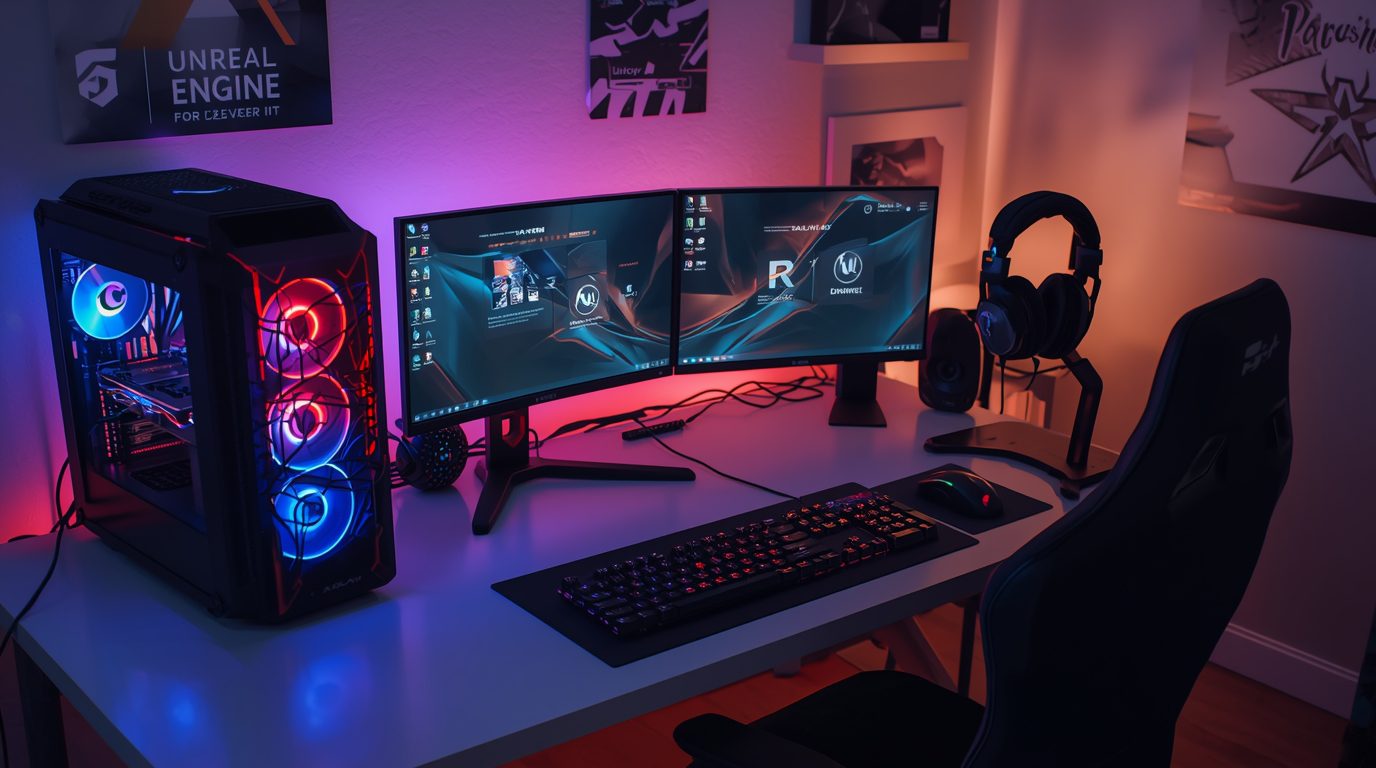
The Dual-Purpose Reality: Your workstation isn’t just for development—it’s also your testing environment. That means your PC needs to handle both compiling shaders and running AAA titles at playable framerates. If you’re developing games inspired by classics like the greatest PS2 games or GameCube masterpieces, you’ll need hardware that can match modern expectations. It’s a delicate balance that requires thoughtful component selection.
Asset-Heavy Workflows: Modern game projects can consume hundreds of gigabytes. Large texture libraries, 3D models, audio files, and project repositories require fast storage and robust backup solutions. Slow hard drives simply won’t cut it.
Collaborative Complexity: Remote game development means coordinating with artists, designers, programmers, and sound engineers across different time zones. Version control systems, asset management tools, and real-time collaboration platforms become mission-critical infrastructure.
The Isolation Factor: Working remotely can feel isolating, especially in an industry built on creative collaboration. Studies show that 38% of remote game developers report feeling isolated, while 55% struggle with team cohesion. Your setup should facilitate connection, not hinder it.
The Hardware Foundation: Three-Tiered Approach
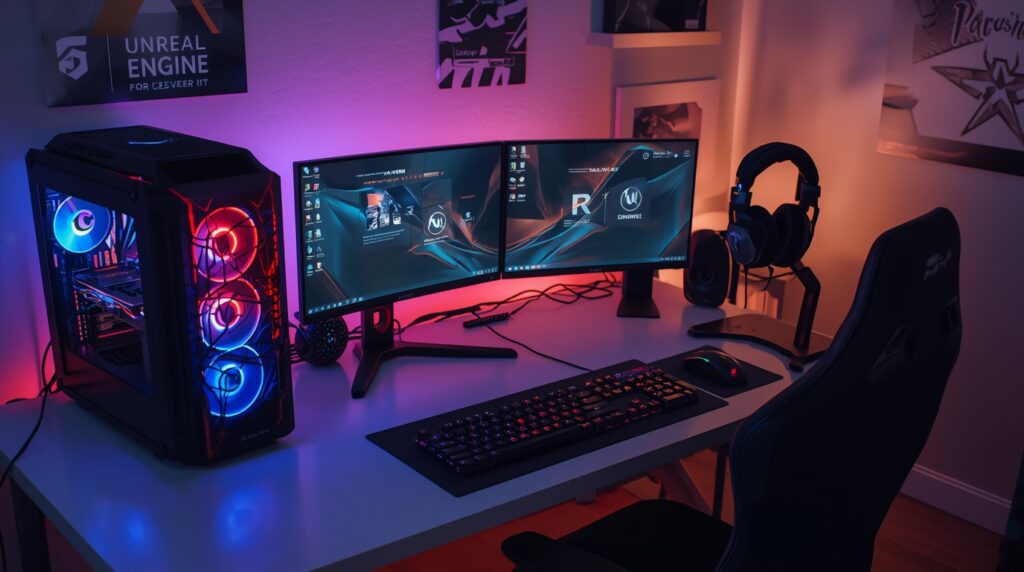
Let’s break down hardware recommendations into three realistic budget tiers. Each tier balances performance with cost, giving you a path forward regardless of your financial situation.
Starter Setup ($1,500 – $2,500)
Perfect for indie developers, students, or those building their first dedicated game dev workstation.
CPU: AMD Ryzen 5 5600X or Intel Core i5-12600K
- 6 cores/12 threads minimum for Unity and Unreal Engine
- Single-threaded performance matters for editor responsiveness
- Budget: $200-300
GPU: NVIDIA RTX 3060 (12GB) or AMD RX 6700 XT
- 12GB VRAM handles most development tasks and testing
- Ray tracing support for modern engine features
- Budget: $350-450
RAM: 32GB DDR4-3200
- 16GB is the absolute minimum, but you’ll hit limits quickly
- 32GB provides headroom for multiple applications and larger scenes
- Budget: $80-120
Storage Solution:
- 1TB NVMe SSD (PCIe 3.0) for OS and active projects
- 2TB SATA SSD for asset libraries and builds
- Budget: $150-250
Monitor: 27″ 1440p IPS display (144Hz)
- Text clarity matters as much as gaming performance
- IPS panel for accurate colors during asset review
- Budget: $250-350
Peripherals:
- Mechanical keyboard with good typing feel
- Multi-button mouse with programmable macros
- Decent headset with clear mic for team calls
- Budget: $200-300
If you’re also a gamer (and let’s face it, most game developers are), consider checking out gifts for gamers for additional peripheral ideas that serve both development and play.
Total: ~$1,500-2,000
Professional Setup ($3,500 – $5,500)
The sweet spot for full-time remote developers working on commercial projects.
CPU: AMD Ryzen 9 7950X or Intel Core i9-13900K
- 16+ cores for faster compilation and multitasking
- High clock speeds (5GHz+) improve editor performance
- Budget: $500-700
GPU: NVIDIA RTX 4070 Ti or RTX 4080
- 16GB VRAM for complex scenes and high-resolution testing
- Excellent ray tracing performance for Lumen and other modern features
- Budget: $800-1,200
RAM: 64GB DDR5-5600
- Professional workflows benefit from extra memory
- Handles multiple engine instances, browsers, and tools simultaneously
- Budget: $200-300
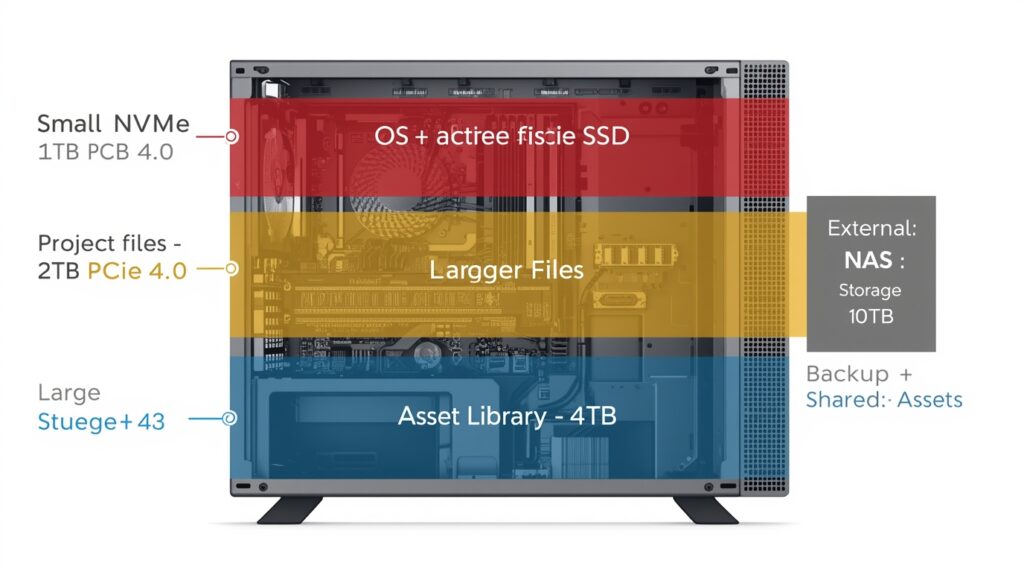
Storage Solution:
- 1TB NVMe SSD (PCIe 4.0) for OS and applications
- 2TB NVMe SSD (PCIe 4.0) for active projects
- 4TB SATA SSD for archives and backup
- Budget: $500-700
Monitor Setup: Dual display configuration
- Primary: 32″ 4K IPS monitor with accurate colors
- Secondary: 27″ 1440p vertical display for code and documentation
- Budget: $800-1,200
Network Upgrade:
- Quality WiFi 6E router or wired 2.5GbE connection
- Uninterruptible Power Supply (UPS) for power protection
- Budget: $200-400
Peripherals:
- Premium mechanical keyboard (Cherry MX or equivalent)
- High-DPI gaming mouse with excellent sensor
- Studio-quality headset or dedicated mic setup
- Ergonomic chair and adjustable standing desk
- Budget: $800-1,200
Total: ~$3,800-5,500
Studio-Grade Setup ($7,000+)
For senior developers, technical artists, or those working on cutting-edge AAA projects.
CPU: AMD Threadripper 7970X or Intel Core i9-14900KS
- 24-32 cores for parallel compilation and complex simulations
- Extreme single-threaded performance for maximum editor responsiveness
- Budget: $1,000-2,000
GPU: NVIDIA RTX 4090 or RTX 6000 Ada
- 24GB VRAM handles any professional workflow
- Top-tier ray tracing and AI-accelerated features
- Budget: $1,600-2,500
RAM: 128GB DDR5-6000 or higher
- Eliminate memory as a bottleneck entirely
- Essential for large open-world projects or complex simulations
- Budget: $500-800
Storage Solution:
- 2TB NVMe SSD (PCIe 5.0) for OS and applications
- 4TB NVMe SSD (PCIe 4.0) for active projects
- 8TB SATA SSD pool for asset libraries
- 10GbE NAS for team-shared assets and automated backups
- Budget: $1,500-2,500
Monitor Setup: Triple or ultrawide configuration
- Primary: 42″ 4K OLED or 45″ ultrawide (5120×2160)
- Secondary: Two 27″ 4K displays for asset management and communication
- Budget: $2,500-4,000
Network Infrastructure:
- Enterprise-grade WiFi 6E or 10GbE wired connection
- Dedicated VPN hardware for secure studio access
- Redundant internet connection (failover)
- Budget: $500-1,000
Peripherals & Ergonomics:
- Premium split ergonomic keyboard
- Professional gaming mouse with replaceable switches
- Studio microphone with audio interface
- Herman Miller or Steelcase ergonomic chair
- Motorized standing desk with memory presets
- Professional lighting for video calls
- Budget: $2,000-3,000
Total: ~$9,600-16,800
The Critical Network Infrastructure Nobody Talks About
Your internet connection is the lifeline of remote game development, yet it’s often the most overlooked component. Here’s what you actually need:
Upload Speed Matters More Than Download
Most ISPs advertise download speeds, but as a game developer, your upload speed determines how quickly you can push commits, share builds, and collaborate in real-time.
Minimum: 20 Mbps upload Recommended: 50+ Mbps upload Ideal: Symmetric gigabit (1000 Mbps up/down)
Version Control Optimization
Large game projects can have repositories measured in tens or hundreds of gigabytes. Optimize your workflow with:
- Git LFS (Large File Storage) for binary assets
- Perforce Helix Core for enterprise-scale projects with better handling of large files
- Plastic SCM as a middle-ground option with cloud support
- Shallow clones when you don’t need full repository history
Remote Desktop Solutions
Sometimes you need access to your office workstation or need to share your screen for pair programming:
Parsec: The gold standard for game developers. Low-latency, high-quality streaming that feels almost local. Used by studios like Blizzard and EA.
Moonlight: Open-source alternative leveraging NVIDIA GameStream protocol. Excellent for accessing your home workstation remotely.
TeamViewer/AnyDesk: Traditional options that work but with higher latency. Better for occasional access than daily development.
VPN Considerations
If you’re accessing proprietary studio resources, you’ll need a VPN. Consumer VPNs often throttle performance, so look for:
- WireGuard protocol for lowest latency
- Split-tunneling to route only studio traffic through VPN
- Hardware VPN appliance for best performance (studio-grade setups)
The Remote Game Dev Software Toolchain
Your development environment extends far beyond the game engine. Here’s the essential software stack:
Communication Platforms
Slack remains the dominant choice, with 72% of remote game developers using it for team communication. Key advantages:
- Integration with development tools (GitHub, Jira, etc.)
- Searchable message history
- Custom channels for different disciplines
Discord is gaining ground, especially in indie development:
- Better voice quality for lengthy design discussions
- Screen sharing built-in
- Less formal atmosphere encourages creativity
Project Management
ClickUp: Highly customizable with multiple view options (Kanban, Gantt, list). Ideal for complex game projects with interdependent tasks.
Jira: Industry standard for larger studios. Powerful but has a learning curve.
Notion: Excellent for documentation-heavy workflows. Great for game design documents and wiki-style knowledge bases.
Asset Management & Version Control
Perforce Helix Core: Scales to handle anything, delivers files quickly to remote users, integrates with CI/CD pipelines. The professional choice for teams handling large binary assets.
Unity Collaborate & Plastic SCM: Native Unity integration makes version control more accessible for artists and designers.
Unreal Cloud DDC: Unreal Engine’s cloud-based derived data cache speeds up iteration for distributed teams.
Collaboration on Creative Assets
Frame.io: Cloud-based media collaboration focused on feedback and approvals. Game teams use it to streamline asset review processes.
Shotgrid (Autodesk): Specifically designed for VFX and game studios. Combines asset management, project scheduling, and review tools.
Miro/FigJam: Digital whiteboards for brainstorming sessions. 49% of remote developers report improved collaborative creativity with these tools.
Build & Deployment
Jenkins: Open-source automation server for continuous integration. Configure automated builds triggered by repository commits.
Unity Cloud Build: Official solution for Unity projects. Build for multiple platforms without tying up your local machine.
GitHub Actions: Increasingly popular for both code compilation and automated testing.
Ergonomics & Health: The Long Game
Game development careers are marathons, not sprints. Protecting your body prevents burnout and extends your productive years.
The 20-20-20 Rule
Every 20 minutes, look at something 20 feet away for 20 seconds. Game development involves intense visual focus that strains eyes more than typical office work.
Desk Setup Fundamentals
Monitor Position: Top of screen at or slightly below eye level. Position 20-30 inches from your face.
Chair Height: Feet flat on floor, knees at 90 degrees, thighs parallel to ground.
Keyboard & Mouse: Elbows at 90 degrees, wrists neutral (not bent up/down or side-to-side).
Standing Desk Usage: Alternate between sitting and standing every 30-60 minutes. Don’t stand all day—variety is key.
Blue Light & Display Settings
Modern displays can cause significant eye strain during long development sessions:
- Enable night mode/blue light filters after 6 PM
- Use f.lux or Windows Night Light to automatically adjust color temperature
- Consider monitor brightness—match your room’s ambient lighting
- Take advantage of “coding mode” features on developer-focused monitors like the BenQ RD320UA
Preventing Repetitive Strain Injury
Thousands of lines of code and countless mouse clicks add up:
- Use keyboard shortcuts religiously—reduce mouse dependence
- Take microbreaks: Stand, stretch, shake out hands every hour
- Consider split ergonomic keyboards to reduce wrist pronation
- Vertical mice can reduce forearm strain for some users
The Psychology of Remote Game Development
Technical setup is only half the battle. Mental health and work-life balance determine long-term success.
Creating Physical Boundaries
When your gaming PC doubles as your work machine, psychological boundaries blur. Strategies that help:
Separate Profiles: Use different Windows/macOS user accounts for work vs. personal use. This creates a mental switch between modes.
Physical Workspace Division: If possible, use a different desk or room area for work. Even a divider screen can help.
Ritual Transitions: Develop a “commute” ritual—a walk around the block, a shower, or changing clothes—to mark the transition between work and personal time.
Managing Isolation
38% of remote game developers report feeling isolated. Combat this proactively:
Virtual Water Cooler: Schedule informal video chats with colleagues. Not everything needs to be about work.
Coworking Days: Periodic visits to the office or coworking spaces maintain human connection. Many studios encourage quarterly on-site weeks.
Community Participation: Engage with game dev communities on Twitter, Discord, or local meetups. Share your work and learn from others.
Avoiding Burnout
The flexibility of remote work can backfire when work bleeds into all hours:
- Set strict work hours and communicate them to your team
- Use time-tracking tools to understand your actual working patterns
- Schedule “deep work” blocks for complex problems without interruptions
- Take real time off—remote doesn’t mean always available
Real Developer Setup Examples
Case Study 1: Solo Indie Developer
Alex, Unity Developer (2D Platformer)
Budget: $2,000
- AMD Ryzen 5 5600X, RTX 3060 12GB, 32GB RAM
- Single 27″ 1440p 144Hz monitor
- Mechanical keyboard, basic gaming mouse
- Focus: Simplicity and reliability
“I deliberately avoided overbuilding. My previous setup had dual monitors and I constantly got distracted. One good monitor forces me to use virtual desktops intentionally. The 3060’s 12GB VRAM handles my needs, and I’ve never waited on compilation. I’m currently working on a snake-style arcade game with modern mechanics, and the setup handles it perfectly.”
Case Study 2: Technical Artist at AAA Studio
Jordan, Unreal Engine Technical Artist
Budget: $6,500
- AMD Ryzen 9 7950X, RTX 4080, 64GB RAM
- 42″ 4K OLED primary + 27″ 4K vertical secondary
- Custom split keyboard, high-DPI mouse
- 10GbE connection to studio NAS
“My work involves shader authoring, VFX creation, and optimizing assets. The OLED’s perfect blacks help me catch rendering issues instantly. The vertical monitor is exclusively for Unreal’s Blueprint graphs—absolute game-changer for readability.”
Case Study 3: Hybrid Indie Team (4 Developers)
Small Studio, Mixed Unity/Unreal
Per-person budget: $3,000-4,000
Shared infrastructure: $2,000
- Individual workstations: Ryzen 7 or i7, RTX 4070, 64GB RAM each
- Shared: Synology NAS with 20TB for asset sharing and automated backups
- Communication: Discord for voice, Plastic SCM for version control
- Cloud build servers for overnight builds across platforms
“We invested heavily in shared infrastructure. The NAS handles automated backups every 4 hours and gives everyone access to our complete asset library. Cloud builds mean we wake up to fresh builds for Windows, Mac, and consoles. We’re currently working on a horror game and the collaborative workflow has been essential for maintaining the atmosphere across all team contributions.”
Platform-Specific Considerations
Unity Development
Unity requires a balanced approach. The editor is CPU-intensive for compilation and scene editing, but modern features like HDRP benefit from strong GPUs.
Key requirements:
- CPU: 6+ cores minimum, favor high single-thread performance
- RAM: 32GB recommended, 64GB for complex projects
- Storage: Fast NVMe for project files reduces load times dramatically
- GPU: RTX 3060 minimum for testing modern rendering features
Unity-specific tools:
- Unity Collaborate for small teams
- Plastic SCM for larger projects
- Unity Cloud Build for automated platform builds
Unreal Engine Development
Unreal Engine 5’s Nanite and Lumen features are GPU-intensive. Your hardware needs reflect this.
Key requirements:
- CPU: 8+ cores minimum, 16+ cores ideal for shader compilation
- RAM: 32GB minimum, 64GB+ for large open worlds
- Storage: PCIe 4.0 NVMe essential—Unreal’s asset streaming relies on fast storage
- GPU: RTX 4070 or better with 12GB+ VRAM. Ray tracing acceleration is critical.
Unreal-specific tools:
- Perforce (Epic’s preference for large teams)
- Unreal Cloud DDC for sharing derived data
- Virtual Production tools for real-time collaboration
Cross-Platform & Console Development
If you’re building for consoles, requirements increase significantly:
Development Kits: PlayStation, Xbox, and Nintendo development requires official dev kits. You’ll need dedicated desk space and good cable management for multiple systems. If you’re inspired by hidden PS2 gems or classic PS2 sports games, modern console development requires significantly more powerful hardware.
Build Pipeline: Console builds are time-consuming. Cloud-based build services or dedicated local build machines become essential.
Network Requirements: Uploading builds to console certification servers requires fast, reliable upload speeds. Budget for business-class internet if deploying frequently.
The Setup Maintenance Schedule
Your remote workspace isn’t “set it and forget it.” Regular maintenance prevents problems:
Weekly
- Clean desk surface and wipe down peripherals
- Check backup systems are functioning
- Review and archive completed work to free space
Monthly
- Update graphics drivers (but read changelogs—sometimes wait for stability)
- Clean PC internals with compressed air (dust buildup reduces cooling efficiency)
- Review and organize digital files
- Test backup restoration process
Quarterly
- Deep clean entire workspace
- Evaluate and update software tools
- Review ergonomic setup—bodies change, adjust accordingly
- Assess if current hardware still meets your needs
Annually
- Plan hardware upgrades (GPU, storage expansion, monitor additions)
- Review total cost of ownership vs. cloud alternatives
- Negotiate better internet rates or upgrade plans
- Professional deep-clean of high-value equipment
Cloud vs. Local: The Hybrid Future
Some developers are moving toward cloud-based workstations, but this isn’t the right choice for everyone.
When Cloud Makes Sense
- You travel frequently and need access from multiple locations
- Your project has massive asset libraries that benefit from centralized storage
- You need to scale compute for rendering or simulation tasks
- Your local internet infrastructure is excellent (low latency, high bandwidth)
When Local Still Wins
- You have inconsistent internet access
- Low latency is critical for your workflow
- You prefer full control over your environment
- Upfront hardware costs fit your budget better than subscription fees
The Hybrid Approach: Many professionals maintain a powerful local workstation for daily development and leverage cloud services for specific tasks like build compilation, asset rendering, or playtesting at scale.
Popular Game Development Niches
Understanding what types of games you want to create can help you optimize your setup further. Some popular development niches include:
- Mobile games: Unblocked games and car games show the continued demand for accessible, browser-based gaming
- Retro-style games: Drawing inspiration from the best 3DS games or classic arcade titles
- Horror experiences: The horror game genre continues to grow with indie developers
- Casual puzzle games: Simple concepts like the snake apple game remain evergreen
Each niche has different hardware demands—mobile development requires device testing, horror games need strong lighting/rendering capabilities, and casual games can often run on more modest hardware.
Budget Allocation Priorities
If your budget is limited, invest in this order:
- CPU & RAM: These determine your day-to-day experience most directly
- Fast Storage: NVMe SSD for active projects is non-negotiable
- Quality Monitor: You stare at it 8+ hours daily—don’t skimp
- GPU: Important but often upgradeable later. A good CPU lasts longer.
- Peripherals: Start with “good enough” and upgrade as budget allows
- Aesthetics: RGB, fancy cases, etc. are fun but don’t improve productivity
Common Mistakes to Avoid
Mistake 1: Neglecting Upload Speed
Many developers focus on download speed but discover too late that their 10 Mbps upload means every commit takes 20 minutes.
Solution: Prioritize symmetric internet or at minimum 50+ Mbps upload.
Mistake 2: Insufficient Storage Planning
“I’ll just buy more storage later” becomes expensive when you’re constantly shuffling files.
Solution: Overestimate storage needs by 50%. Projects always grow larger than expected.
Mistake 3: Ignoring Backups
Hard drives fail. Cloud services have outages. Multiple developers have lost months of work from single points of failure.
Solution: 3-2-1 backup rule: 3 copies, 2 different media types, 1 offsite. Automate it.
Mistake 4: Cheap Peripherals That Cause Pain
A $15 mouse and $30 keyboard seem like good savings until carpal tunnel sets in.
Solution: Invest in ergonomic peripherals early. Your future self will thank you.
Mistake 5: Not Testing the Setup Before Going Full Remote
Many discover critical gaps in their setup only after committing to remote work.
Solution: If possible, do a trial week before finalizing. Identify issues while you still have access to alternatives.
The Future of Remote Game Development
The industry is moving decisively toward flexible work arrangements. 78% of studios that embraced remote work plan to maintain flexible policies indefinitely.
Emerging trends:
- VR collaboration spaces are moving from gimmick to genuine productivity tool. 32% of remote developers now use VR/AR for creative sessions.
- AI-assisted development tools are reducing the processing demands on local hardware
- Cloud gaming infrastructure is being repurposed for remote development and testing
- Asynchronous collaboration tools are improving to accommodate global teams across time zones
Your remote setup isn’t just about today’s work—it’s infrastructure that should evolve with these industry changes.
Conclusion: Your Setup Reflects Your Priorities
The perfect remote game development setup doesn’t exist—only the perfect setup for your specific needs, budget, and working style.
Start with the fundamentals: a capable CPU, sufficient RAM, fast storage, and reliable internet. Build from there based on your specific discipline. Technical artists need powerful GPUs. Programmers benefit from extra RAM and fast compilation. Designers might prioritize multiple monitors for workflow efficiency.
Most importantly, remember that your setup serves you—not the other way around. The goal is sustainable productivity that lets you build amazing games without sacrificing your health, relationships, or sanity.
Whether you’re building your first indie project from a bedroom or leading a distributed team on the next AAA blockbuster, the principles remain the same: invest wisely, maintain your tools, protect your health, and create the environment where your best work can emerge.
Now get out there and build something incredible.
Quick Reference Checklist
Essential Setup Components
- CPU: 6+ cores minimum, high single-thread performance
- RAM: 32GB minimum, 64GB for professional work
- Storage: 1TB+ NVMe SSD for active projects
- GPU: RTX 3060 12GB minimum, higher for Unreal/advanced features
- Monitor: 27″ 1440p or 32″ 4K, accurate colors
- Internet: 50+ Mbps upload, low latency
- Ergonomic chair and adjustable desk
- Quality keyboard and mouse for long sessions
Software Essentials
- Game engine (Unity, Unreal, Godot)
- Version control system (Git, Perforce, Plastic SCM)
- Communication platform (Slack, Discord)
- Project management tool (ClickUp, Jira, Notion)
- Backup solution (automated, tested regularly)
- VPN for studio resource access
- Remote desktop software (Parsec recommended)
Ergonomics & Health
- Monitor at correct height and distance
- Chair adjusted for proper posture
- Keyboard and mouse at comfortable height
- Regular breaks scheduled
- Eye strain prevention measures
- Physical workspace boundaries established
Network & Infrastructure
- Adequate upload speed tested
- Backup internet option identified
- VPN configured and tested
- NAS or cloud backup operational
- Build automation configured
Remember: This is a living setup. Review and adjust every quarter to ensure it continues serving your evolving needs.