🧠 The Complete 2025 Handbook
The Google Memory Game:
Ultimate Guide to Play, Score & Win
From the hidden Pi easter egg to chasing world records — everything you need to know, in one place.
📋 What’s Inside
What Exactly Is the Google Memory Game?
You’ve probably stumbled across it by accident. One minute you’re Googling something boring, the next — you’re 20 minutes deep flipping virtual cards and muttering “just one more round.”
The Google Memory Game is a free, browser-based card-matching game you can play instantly — no download, no account, no app store. It’s part of Google’s family of playable easter eggs hidden inside Google Search, much like the famous Google Doodle games.
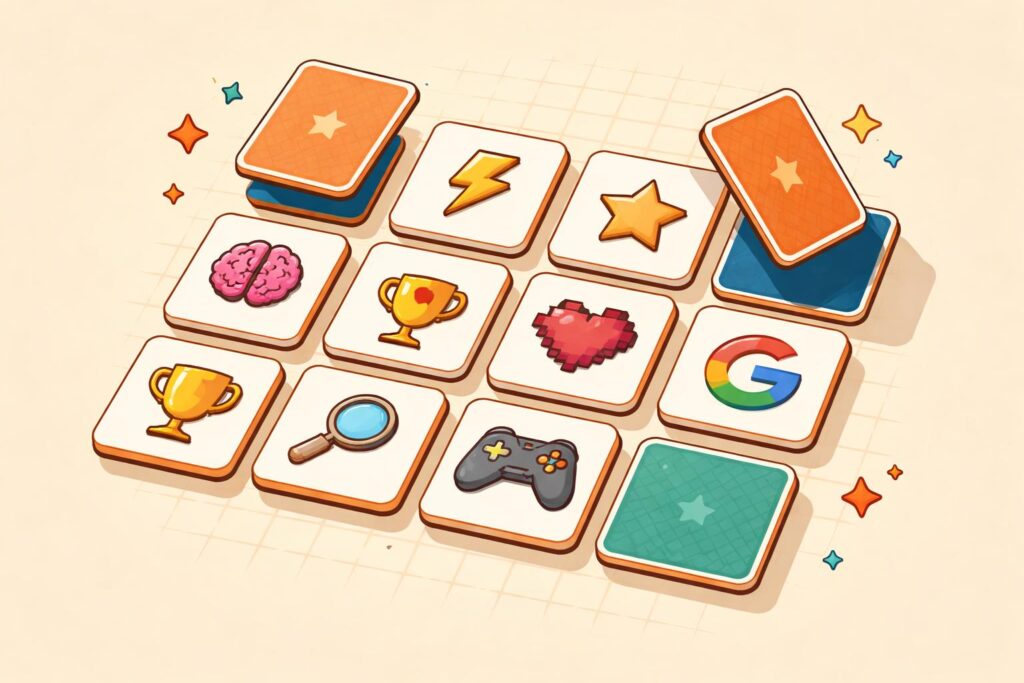
The premise is classic: a grid of face-down cards, each with a hidden image. Flip two at a time. If they match, they stay revealed. If they don’t, they flip back over — and you have to remember where each one was. Match all pairs to win.
What makes Google’s version special is where you find it — and the sneaky secret version buried inside Google Calculator. There are actually two distinct experiences:
Found by searching “memory game” on Google Search. Features themed decks (animals, food, shapes) and an optional 2-player mode. Fully playable on desktop and Android mobile browsers.
A completely different, digit-based memory challenge hidden inside Google Calculator. More on this secret gem in its own section below.
Both are totally free, run in your browser, and need zero installation. If you’re a student looking for a 5-minute brain break, a teacher wanting a classroom tool, or a casual gamer chasing a google memory game high score — this guide has you covered.
How to Play the Google Memory Game
Getting started takes literally ten seconds. Here’s the step-by-step:
-
1
Open Google Chrome (or any browser)
Works on desktop, laptop, and Android. iOS support can vary by browser version, so Chrome is your safest bet.
-
2
Search “memory game” on Google
An interactive card game widget will appear directly in your search results — no need to click any link.
-
3
Choose your difficulty
Pick from Easy (4×3 grid), Medium (5×4 grid), or Hard (6×5 grid). Beginners: start on Easy to get a feel for the flip mechanics.
-
4
Select a card theme (optional)
You can choose from themed decks — animals, food, sports, and more. This also makes it a great google memory game for kids, since colorful characters are more engaging than abstract shapes.
-
5
Start flipping!
Click (or tap) any card to flip it. Then flip a second card. A match = both stay face-up. No match = both flip back. Keep going until all pairs are found.
-
6
Check your score
Your score is based on moves taken and time elapsed. Fewer moves = higher score. The game displays your result at the end — try to beat it next round!
🎮 Playing in 2-Player Mode
The Google Memory Game 2-player mode is one of its best-kept secrets. When starting a new game, look for the “2 players” toggle before the grid appears. In this mode, players take turns — when you get a match, you earn a point and get another turn. The player with the most matches when the board clears wins. Perfect for siblings, classmates, or settling office debates.
Open Chrome on Android, search “memory game,” and the widget loads natively. Tap to flip. The game is fully optimised for touch — no pinching or zooming needed. Desktop and mobile scores are tracked separately within the session.
🔢 The Secret Pi Memory Game
Here’s where things get really interesting. Buried inside the Google Calculator is a completely different kind of memory challenge — the Pi Memory Game. This is a niche easter egg that most people never discover, but once you find it, it’s weirdly addictive.
How to Find It
-
1
Open Google Calculator
Either search “calculator” on Google, or open the Google Calculator app on Android.
-
2
Tap or click the π (Pi) button
This displays Pi to several decimal places in the result field (3.14159265358979…).
-
3
Keep tapping π — the game begins!
After a few presses, a memory sequence game activates. The calculator displays a sequence of Pi’s digits, then hides them. Your job: recall and re-enter the correct digits in order.
How the Pi Game Works
The Google Pi Memory Game is less about card matching and more about digit-sequence memory — closer to a classic Simon-style challenge. Here’s the core loop:
- A sequence of Pi digits flashes on screen for a few seconds.
- The display clears. You must type the digits back from memory.
- Each correct round adds more digits to the sequence — it gets harder and faster.
- One wrong digit and the run ends. Your score = how many consecutive digits you remembered correctly.
Memory champions don’t memorize long strings of digits one-by-one. They “chunk” them into groups of 3–4 (e.g., 314 · 159 · 265). Apply this to the Pi game and your recall will shoot up immediately.
The Pi game is especially popular with students and math enthusiasts who already enjoy memorizing Pi’s digits. It’s also a legitimately great brain exercise for improving working memory — not just a party trick.
Scores, Records & Pro Tips
What’s a Good Score?
Google’s memory game scores you based on number of moves. Fewer moves = better score. Here’s a rough benchmark breakdown most players fall into:
| Difficulty | Average Score (Moves) | Good Score | Elite Score |
|---|---|---|---|
| Easy (4×3) | 14–20 moves | 10–13 moves | ≤9 moves |
| Medium (5×4) | 28–40 moves | 22–27 moves | ≤20 moves |
| Hard (6×5) | 50–70 moves | 38–49 moves | ≤35 moves |
Google Memory Game World Record
As of 2025, the google memory game world record for the Hard difficulty sits in the range of 15–18 moves — essentially near-perfect play with almost zero wasted flips. These runs are typically performed by players with exceptional short-term visual memory who pre-plan their grid scan before flipping.
Because Google doesn’t maintain an official global leaderboard, the google memory game WR lives in community spaces — Reddit threads, YouTube speedrun clips, and Discord servers. If you think you’ve hit something record-worthy, record your screen and share it!
5 Tips to Crush Your High Score
Scan First, Flip Second
Spend 3 seconds mentally mapping the grid layout before you touch a single card. Knowing position X–Y coordinates prevents random guessing.
Use a Grid System
Mentally label rows (A, B, C…) and columns (1, 2, 3…). When you flip card B3, log it as “B3 = duck.” This turns vague memory into a system.
Always Clear Known Pairs First
If you already know where a pair is, match it immediately. Don’t flip unknowns when you have guaranteed points waiting.
Slow Down to Speed Up
Rushing leads to panicked flips. A deliberate 1-second pause after each reveal to mentally log the card pays dividends later.
Replay Immediately
Repetition on the same difficulty trains your visual memory system. Three focused runs back-to-back improve recall faster than one run per day.
🎨 Creative Corner: Google Slides Memory Game
Want to create a memory game in Google Slides? It’s a surprisingly powerful DIY move — especially for teachers making custom classroom games, or anyone who wants a themed deck beyond what Google’s built-in game offers. And yes, a Google Slides memory game template makes this dramatically easier.
Why Google Slides Works for This
Slides lets you use clickable hyperlinks between slides to simulate card flips. Each “card” is a shape on a slide — click it and it jumps to a new slide showing the revealed image. It’s low-code, shareable via link, and works on any device with a browser.
Quick-Start: Build Your Own Memory Game
The best Google Slides memory games for classrooms use curriculum-relevant content: matching vocabulary to definitions, flags to countries, or equations to answers. It’s gamified learning with zero app permissions needed.
❓ FAQ
Technically, browser developer tools could theoretically be used to inspect card IDs before flipping — but that’s more a debugging exercise than a cheat, and it entirely kills the fun. There’s no legit cheat code or shortcut built into the game. The real “hack” is the grid-mapping strategy described in the Pro Tips section above. That approach can cut your move count nearly in half on its own, no code required.
No — the Google Memory Game requires an active internet connection, as it’s served directly from Google’s servers via Search. However, a Google Slides memory game downloaded to your device can work offline in Google’s desktop apps. If you need a fully offline memory card game, apps like “Concentration” or “Pairs” are available for iOS and Android without a connection.
Google doesn’t run an official leaderboard, so the world record exists informally within the community. On Hard difficulty, sub-20 move completions have been documented on YouTube and Reddit. The theoretical minimum for a perfect run on Hard (30 pairs) would be 30 moves — but that would require knowing every card position before flipping, which in practice would mean around 15–18 moves with a small number of exploratory flips early in the game. As of 2025, this remains the benchmark for elite-level play.
100% for adults. Working memory training benefits people of all ages, and harder difficulties genuinely challenge adult cognitive recall. Research in cognitive science consistently shows that memory-matching exercises help maintain working memory capacity — making this a surprisingly legitimate “brain game” and not just child’s entertainment. The Pi Memory Game variant skews even more adult, appealing to mathematicians, students, and competitive memorizers.
They’re closely related but not identical. The Google Doodle Memory Game refers specifically to memory games released as interactive Google Doodles — these are usually tied to holidays or cultural events and live permanently at google.com/doodles. The standard “memory game” in Search is a standalone, always-available version with configurable difficulty and themes. Both are free, both are card-matching games, but the Doodle versions are themed one-offs with unique art.
Ready to Beat the Average? 🏆
You’ve got the strategies, the secrets, and the scores. Now it’s time to put them to work — challenge a friend to 2-player mode and see who really has the better memory.
▶ Play the Google Memory Game Now