Cursor IDE Review 2026: Is It Really Worth Switching From VS Code?
The best part of Cursor IDE Review 2026 is that it’s an AI code editor worth switching from VS Code. By 2026, AI is so ubiquitous in coding that it is considered regular practice. No longer writing code line by line. They collaborate with smart tools that are aware of whole projects, offer suggestions, or even propose changes throughout a variety of files.
One of these new additions has become one of the most discussed: Cursor IDE. So, the question that many developers are keen to ask is should they make the switch from VS Code or is it simply a fad? This detailed tutorial will help you understand all of the important aspects of Cursor IDE.
We shall examine what it really is, how it applies in actual projects, its knack and limitations, genuine examples of its application and if it is sensible for you to begin using it this year.
Why Cursor IDE is so quick and what is it?
Cursor IDE is an AI-focused, full code editor. It’s a product of the company Anysphere. The team took the hugely popular Visual Studio Code and infused it with AI throughout the experience, rather than as an extra plugin.
In essence, Cursor is a familiar application for those who have used VS Code in the past. You can import all your favorite extensions, themes, keyboard shortcuts and settings in few clicks. But once you begin coding, you’ll notice that the difference is quite noticeable. The AI of Cursor is not limited to the document you’re working on; it applies to your entire project. This will allow it to recommend better changes, identify issues early, and assist you in developing new functions in a number of files simultaneously.
In mid-2026, Cursor IDE has already counted millions of users! It is used by most professional developers on a daily basis in their web development, mobile application, backend services and data science projects. The primary attraction of it is that it would save true time. With the AI features, you can complete tasks that would take hours in just minutes.
The inner workings of Cursor IDE in development
The most impressive aspect of Cursor IDE is how seamlessly the AI integrates into your workflow. No need to keep switching between tools or copy/paste from various AI chats.
Once you open a project, Cursor begins to check the files. For small projects this occurs very quickly. If the codebase is larger, it can take several minutes the first time, but after that, it’s fast. After the project is indexed, you will have access to some powerful tools for working.
Key features that make Cursor stand out:
- Smart autocomplete that suggests whole blocks of code while understanding your project structure and coding style.
- Chat sidebar that can answer questions about your specific codebase with accurate context.
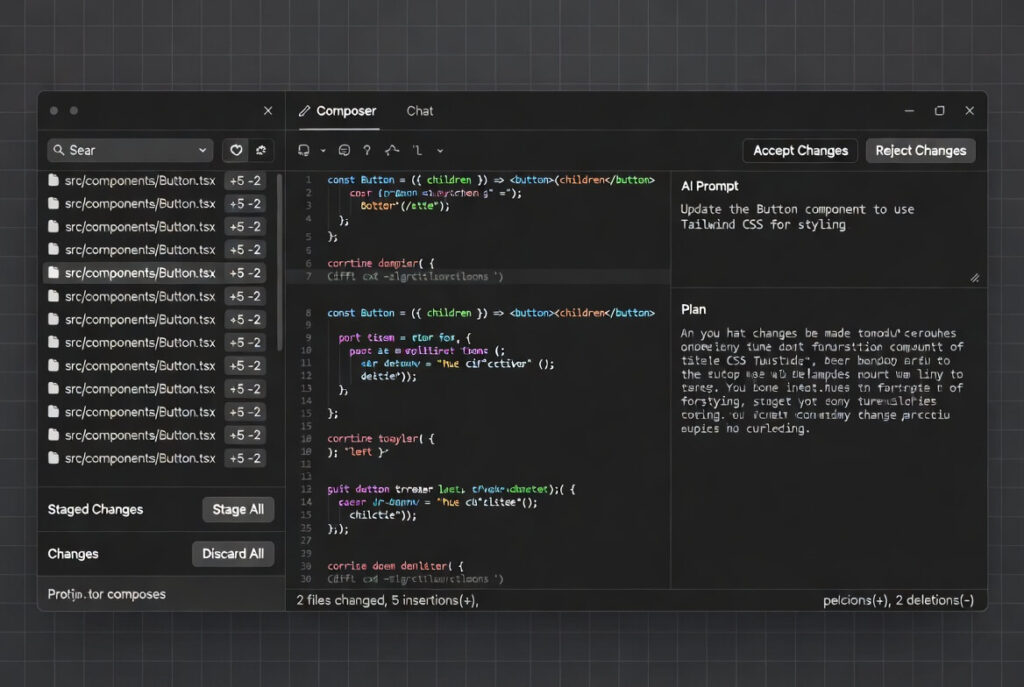
- Composer mode for planning and making changes across many files at once.
- Inline editing where you highlight code and tell the AI exactly what to fix or improve.
- Custom rules system through .cursorrules files to keep code consistent.
- Support for switching between different AI models depending on the task.
As you type, you can use the regular autocomplete feature. Unlike basic tools, Cursor’s suggestions understand your app’s structure and often recommend entire functions that fit your existing coding style.
You can also have a chat window with which you can talk to your codebase. You may ask, for example, if in this project the payment system is “How does the payment system work?” and get a clear answer, pointing to the actual files. This is particularly helpful when you are on a team or are coming back to a project after a period of time.
Real-world examples of Composer in action:
- “Add dark mode support across all components and update the settings page”
- “Create API endpoints for user profile management with proper validation”
- “Refactor this authentication logic to use the new security library”
- “Write unit tests for the payment processing functions”
Composer is the favorite feature of many! You make a statement in everyday language about what you wish to construct or alter. Composer considers the job, displays a plan and then makes changes in various files. Each section can be accepted, rejected or changed. The new versions of Composer have started to be much smarter and make less glaring mistakes in 2026.
Cursor IDE vs VS Code and GitHub Copilot – The Real Deal
Nevertheless, many developers are still asking themselves if they really need Cursor or if VS Code with Copilot is enough.
The reality is both tools are useful. VS Code is still very flexible and 100% free. With Copilot added, you have good AI support. However, Cursor was designed from the beginning as an AI-first editor. This more extensive integration typically leads to greater insight into your project and helpful pointers.
| Aspect | Cursor IDE | VS Code + GitHub Copilot |
|---|---|---|
| AI Understanding of Project | Very deep, project-wide | Good, but more limited |
| Multi-file Changes | Excellent through Composer | Possible but slower |
| Overall Speed of Development | Often significantly faster | Solid for most tasks |
| Monthly Price (Pro) | $20 | $10 |
| Familiarity | Almost identical to VS Code | Exactly VS Code |
When you work on medium or large projects where context is crucial, Cursor comes out on top. However, if you’re working on simple scripts or operating on a tight budget, VS Code with Copilot may be the better option.
The following steps will help you get started using Cursor IDE
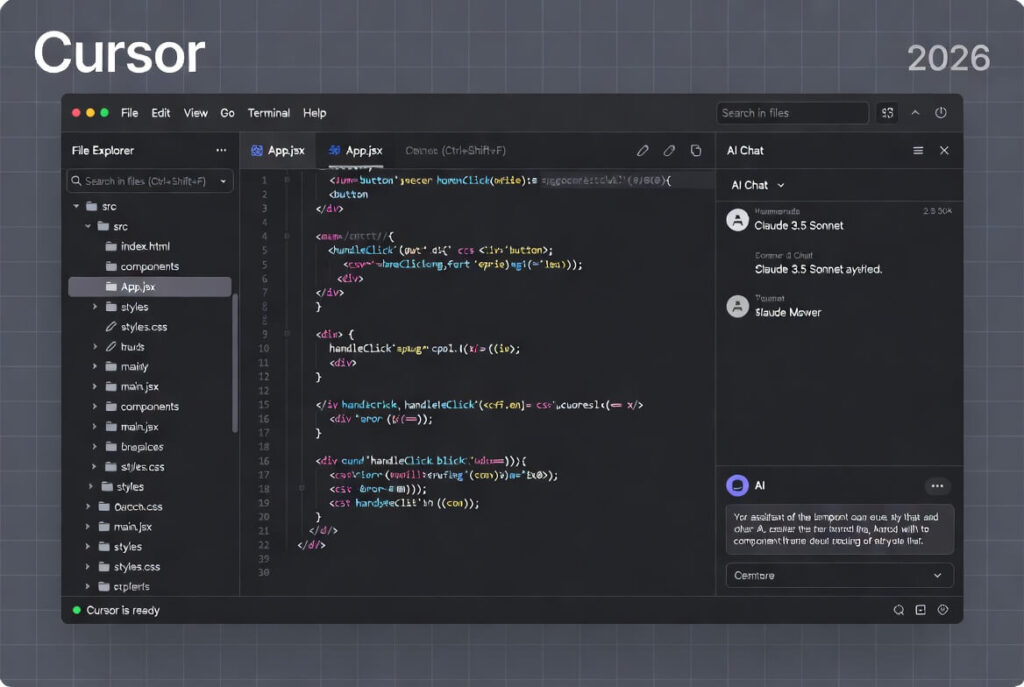
It is very easy to install Cursor IDE. At the official site, download the specific version for your operating system (Windows, Mac, Linux), and execute the installer. The entire process is similar to installing VS Code.
Once the installation is complete, Cursor automatically offers to import all your settings, extensions, and themes from VS Code. Most people prefer to import everything, and they feel at home right away. After launching a project, it’s a good idea to take a little time to create your first .cursorrules file. The quality of the AI suggestions can be significantly enhanced with a few simple instructions.
Best practices when creating your first .cursorrules file:
- Clearly describe your preferred code style and naming conventions.
- Include security and performance guidelines important for your project.
- Define architecture rules (for example, how components should be structured in React).
- Add specific libraries or patterns you want the AI to use.
If you’re interested in other AI tools that help with creative development work, check out our detailed review of Rosebud AI, which is excellent for turning ideas into playable prototypes quickly.
You’ll learn some advanced techniques for using Cursor
The AI will perform at its best when users know how to communicate effectively with it. Specific requests tend to give more specific code. It also allows for the selection of different AI models based on the task at hand. Some models are more adept at creative solutions, others are more adept at careful refactoring.
If your code base is large, the Pro version with cloud indexing is quite a bit quicker. Single sign-on and improved admin controls are other enterprise benefits that many teams value.
Useful tips for experienced developers:
- Use @file and @folder mentions in chat to give the AI precise context.
- Break big tasks into smaller steps when working with Composer.
- Regularly review and update your .cursorrules as the project grows.
- Experiment with different AI models for different types of work.
React, Next.js, Python, TypeScript, and Node are some of the frameworks that developers find to work well with Cursor, as they are quite familiar with them.
| Popular Frameworks & Languages | How Well Cursor Performs | Best Use Cases |
|---|---|---|
| React / Next.js | Excellent | Component generation, routing |
| Python (Django, FastAPI) | Very Strong | Backend logic, data processing |
| TypeScript / Node.js | Outstanding | Full-stack applications |
| Java / Go | Good | Enterprise systems |
| Mobile (Flutter, Swift) | Solid | UI and business logic |
Pricing Options in 2026
There are several plans for Cursor IDE. The free version allows you to test out the editor and access some basic features, although there are restrictions on the number of AI requests you can make per day. When most users are serious, they quickly progress to the Pro plan, at $20 per month. This provides free and unlimited fast completions and higher limits.
There are additional “Heavy User” and “Teams” tiers as well. Team plans range around $40 per user and feature enhanced collaboration attributes. Customers of enterprise level can secure bespoke contracts with additional security guarantees. If you’re a professional coder, you’ll find the time saved with Cursor will pay for the subscription.
The Pros and the Cons
Most developers will see that they are able to complete features much quicker after using Cursor for a period of time. The AI is a really smart pair programmer with no fatigue! Improved code quality, since the tool offers sound suggestions, and can identify problems at an early stage.
Main advantages:
- Noticeable increase in development speed on complex tasks.
- Better understanding of large codebases compared to regular plugins.
- Smooth transition for VS Code users.
- Regular updates that add new powerful features.
- Helpful for both solo developers and teams.
Common disadvantages:
- Still requires human review because AI can make subtle mistakes.
- Higher price than basic Copilot for individual users.
- Free tier feels limited for daily professional work.
- Takes time to learn how to write effective prompts.
Who will benefit the most from Cursor IDE?
Cursor is ideal for developers who work on real applications every day. Full-stack engineers, small startup teams and engineers with experience using complex systems benefit the most. For those just starting to learn how to program, or if they’re on a very small personal project, the free version of Cursor or even regular VS Code may be sufficient for the time being.
Is it worth switching to Cursor in 2026?
Cursor IDE is a very step forward in the field of software writing. It retains the warmth of VS Code while adding on some powerful and useful AI tools that can actually help boost your productivity.
The switch isn’t difficult, and you can always alter your mind if it doesn’t feel right. After a couple of weeks of using Cursor, most developers who have tried it out stick with it as the speed improvements seem to make a difference.
If you are spending a few hours coding a day, and you wish to keep your toes in the game of the latest tools, it is well to download Cursor and give it a try on one of the projects you’re currently working on.
Try it out after a couple days of real work. It really seems like the future of coding is all about more AI integration, and at the moment, Cursor is one of the best tools that exists.