
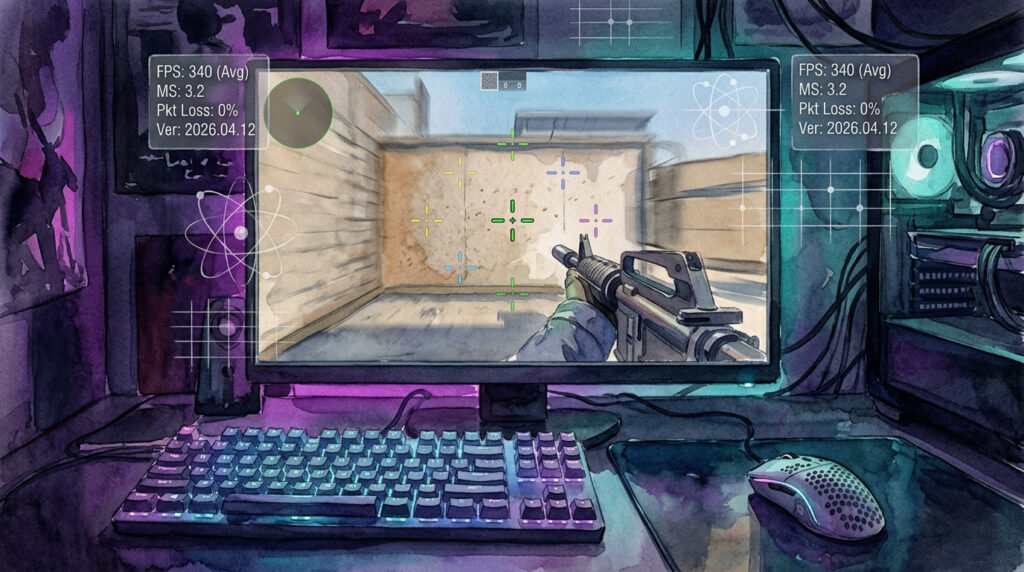
Your raw aim is a ceiling you’ll never break through without the right foundation under it. Every professional-level player in 2026—from donk to NiKo to ZywOo—has spent hours not in deathmatch but in their config files, tightening resolution, tuning sensitivity to the millimeter, and dialing in a crosshair that collapses into a single pixel under pressure. This guide breaks down exactly what those configs look like, why they work, and how the visual structure of your HUD determines whether your brain processes enemy positions as fast as your hand can flick. We’re covering cs2 crosshairs, the full donk cs2 settings breakdown, and the layered logic behind HUD alignment that most guides don’t touch.
1 The Donk Factor: Settings Built for Aggression
Donk (Danil Kryshkovets) entered the pro scene with Spirit and immediately broke the model of what a rifle AWPer hybrid could look like. His donk cs2 settings aren’t just preferences—they’re engineering decisions that match his playstyle: explosive entries, short-peek duels, and a reaction speed that exploits server tick before opponents register the angle.
Donk — Full Settings Breakdown
| Setting | Value | Rationale |
|---|---|---|
| DPI | 400 | Low DPI keeps sensor precision high on optical tracking |
| In-game Sensitivity | 1.9 | Moderate EDPI (~760) for snap flicks without arm fatigue |
| Resolution | 1280×960 | Stretched 4:3 widens enemy hitboxes horizontally |
| Aspect Ratio | 4:3 | Familiar pro-standard; reduces peripheral visual noise |
| Zoom Sensitivity | 1.0 | 1:1 scoped-to-unscoped muscle memory consistency |
| Hz / Polling Rate | 8000 Hz | High-polling mice deliver sub-ms input latency |
| Raw Input | ON | Bypasses Windows pointer acceleration entirely |
Why 4:3 Stretched in 2026?
The debate resurfaced when Valve updated CS2’s renderer in early 2025. Despite native widescreen
support improving, stretched 4:3 remains dominant at T1 because it compresses horizontal
FOV, making enemies appear wider and easier to track with small wrist movements. Donk runs
1280×960 stretched on a 240Hz panel—the tradeoff is peripheral clarity for
target acquisition speed in tight corridors. For players on 1080p monitors, 1280×960
or 1024×768 are the two most-used stretched options in pro lobbies.
2 Visual Precision: CS2 Crosshairs That Win Duels
A cs2 crosshair isn’t decoration. It’s a targeting instrument that has to disappear into your subconscious—visible enough to register, small enough to let you see the player model behind it. The best cs2 pro crosshairs in 2026 share three traits: zero gap clutter, consistent color contrast across all maps, and a spread indicator that communicates spray state without demanding conscious attention.
What the Numbers Actually Mean
The cl_crosshairsize command controls arm length in pixels.
cl_crosshairgap sets the space between arms and center—negative values collapse
the crosshair inward for a tighter dot-style. cl_crosshairthickness governs
arm width. Pro crosshairs in 2026 skew heavily toward size 1–2, gap -3 to 0, thickness 0.5–1.
Static crosshairs (cl_crosshairdot 0 + cl_crosshair_dynamic_splitdist 0)
dominate because dynamic spread animation burns cognitive bandwidth you need for positioning.
0 255 255. Avoid pure white on overcast maps—it bleeds into
the skybox on Ancient and Vertigo.
Building Your Own From Scratch
Open the CS2 crosshair workshop (Settings → Crosshair → Workshop Map) and dial in these baseline values before touching color or style:
| Command | Recommended Range | Effect |
|---|---|---|
cl_crosshairsize |
1 – 2.5 | Shorter arms = tighter perceived target zone |
cl_crosshairgap |
-3 – 0 | Negative gap creates center-focus dot behavior |
cl_crosshairthickness |
0.5 – 1 | Thin lines obscure less of the hitbox |
cl_crosshair_drawoutline |
1 | Black outline ensures contrast on all surfaces |
cl_crosshairalpha |
200 – 255 | Full opacity; semi-transparent crosshairs cause tracking errors |
If you want more geeky comparison material on competitive game mechanics, the clash royale card comparison approach—ranking attributes in structured tables—applies directly to crosshair config analysis. For deeper CS2 ecosystem reading, the live player count analysis format gives context on how CS2’s ranked population shifts seasonally and why pro config trends follow those shifts.
3 The CS2 Lewis Structure: HUD Alignment as Visual Logic
When competitive players and coaches refer to the CS2 Lewis structure, they’re describing something specific: the node-and-bond architecture of your heads-up display— the spatial relationship between every persistent UI element and how your eye moves between them during a live round. Just as a Lewis diagram maps electron-pair geometry around a central atom, your HUD has a geometry, and every element you leave in the wrong position costs you reaction time.
Mapping the HUD Nodes
Your crosshair is the central atom. Every other HUD element is a bonded node that your visual attention must visit and return from without breaking crosshair discipline. If your HP counter sits too low-left while your ammo counter is bottom-right, the eye triangle your brain draws on every glance wastes ~80–120ms of scan time per visit.
Optimizing the CS2 Lewis structure means minimizing the perceptual distance
between nodes. Competitive players who use hud_scaling 0.85 and tight radar
positioning report lower cognitive load during active firefights—the scan circuit is shorter.
Optimizing HUD Node Positions
The principle applies to your launch options too. Stripping the startup sequence of unnecessary arguments tightens the boot-to-game latency, which is the macro version of the same Lewis structure concept—fewer intermediary nodes between input and output.
These six launch arguments are the 2026 standard. -novid skips the intro sequence;
+fps_max 0 uncaps frame rate and lets your GPU breathe; -freq 240 tells
CS2 explicitly what your monitor’s max refresh is—without it, some systems default to 60Hz
until manually overridden in video settings.
Video Settings: The Frame Budget
Performance settings in CS2 aren’t about looks—they’re about frame budget allocation. Every visual effect you enable is CPU/GPU time that could be rendering the next frame instead.
| Setting | Value | Frame Impact |
|---|---|---|
| Global Shadow Quality | Very Low | High savings; shadows occlude footstep audio reads visually |
| Model / Texture Detail | Low | Enemy models render faster; hit registration is server-side anyway |
| Effect Detail | Low | Removes smoke bleed and flash residue GPU overhead |
| Shader Detail | Low | Major FPS uplift on mid-range GPUs; zero gameplay impact |
| Anti-Aliasing | None / FXAA | MSAA tanks performance; FXAA has minimal FPS cost |
| V-Sync | OFF | Adds 1–3 frames of input latency; never use in competitive |
| Boost Player Contrast | ON | Valve’s built-in visibility enhancement; use it every time |
If you’re deep into optimization and want to explore adjacent game systems that use similar performance-budget thinking, the geometry formulas in game development breakdown and the optimizing draw calls in Unity for mobile VR guide explain why low-detail settings actually improve competitive readability at the engine level. For players who want to understand the full competitive landscape their settings sit inside, triple-A game production context and the best game developer studios analysis are worth reading.
On the hardware side, players chasing every marginal edge should also read about current VR gaming benchmarks for context on how GPU rendering pipelines have evolved—the same GPU doing CS2 at 400fps is also the ceiling for immersive VR, and knowing that spec curve helps you make smarter upgrade decisions.
4 Copy-Paste Configs Don’t Win Games—Iteration Does
Every setting in this guide is a starting coordinate, not a destination. Donk’s donk cs2 settings work for donk because they’re calibrated to his motor memory, his monitor, his mouse, and the specific angles he plays at T1. Paste his config into your game and you’ll be playing with a steering wheel tuned for someone else’s hands.
The right process: take one cluster—cs2 crosshairs first, since it’s the lowest-stakes variable—and run 500 kills in deathmatch before touching anything else. Then adjust sensitivity in 0.1 increments over two weeks. Then tackle HUD layout. The CS2 Lewis structure principle exists precisely because every node change you make alters the whole system’s scan circuit—you can’t optimize two variables simultaneously and isolate the cause of improvement.
The players consistently ranked in Global Elite and Pro rank in 2026 don’t have better configs. They have more iterations on their configs. That’s the actual advantage—documented testing, honest feedback from ranked matches, and the patience to hold a setting for long enough to form real muscle memory before judging it.
If this guide sparked interest in adjacent competitive games or gaming systems, the best single-player PC games of 2026 offer a useful palette-cleanser between ranked sessions—and the game development tips and tools breakdown gives a developer-side lens on why certain CS2 design decisions (like the tick rate system) exist in the first place.