
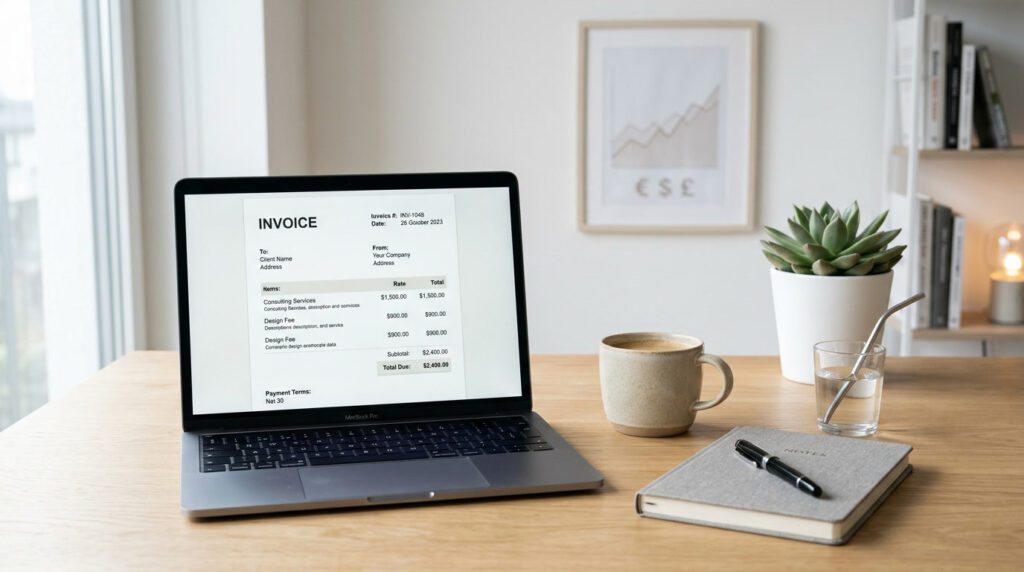
Every late payment starts the same way: a job well done, a client who meant to pay, and an invoice that got lost, forgotten, or never looked professional enough to feel urgent. Invoicing is not paperwork. It is the mechanism that turns your work into revenue. Get it right and cash flows predictably. Get it wrong and you spend hours chasing money that is already owed to you.
This guide covers everything — from building your first invoice in Excel to automating hundreds of them in QuickBooks. Whether you bill one client a month or manage recurring contracts with dozens of customers, you will find a method here that fits your workflow and budget.
Section 1
What Every Invoice Must Include (The Legal Minimum)
Before choosing a tool, understand what a valid invoice actually requires. Missing a single field can delay payment or create tax headaches. Here is the baseline for any professional invoice:
- Your full name or business name and contact details
- Client’s name and address — match what’s in the contract
- A unique invoice number — sequential, never repeated
- Invoice date and due date (e.g., “Net 15” or “Due on receipt”)
- Itemized list of services or products with descriptions, quantities, and unit prices
- Subtotal, taxes, discounts, and total amount due
- Payment methods accepted — bank transfer, PayPal, card, check
- Late fee policy (optional but strongly recommended)
Section 2
How to Create Invoices for Free: Manual Methods That Actually Work
Paid software is great, but it is not required to send a professional invoice. The three most reliable free methods are Microsoft Word, Excel, and browser-based invoice generators. Each has its place depending on your volume and technical comfort.
How to Create an Invoice in Word
Microsoft Word is the most accessible starting point. It handles formatting cleanly, exports to PDF instantly, and every client can open it.
- Open Word and go to File → New. Search for “invoice” in the template library.
- Choose a clean template — avoid anything overly decorative. Simple layouts communicate professionalism.
- Replace placeholder text with your business name, logo, and contact details.
- Fill in the client section, invoice number, and dates.
- Add your line items in the table. Adjust the rows as needed.
- Update the totals — Word does not auto-calculate, so use a calculator or do it manually.
- Save as .docx for your records, then Export → PDF to send to the client.
Best for: Freelancers billing fewer than 5 clients per month who need full control over layout and branding.
How to Create an Invoice in Excel
Excel adds something Word cannot: automatic calculations. Once your template is set up, totals, taxes, and subtotals update the moment you enter a number. This saves real time and eliminates arithmetic errors.
- Open Excel and search for invoice templates under File → New.
- Select a template with formula-ready cells (look for ones where the total row updates automatically).
- Customize the header: your name, address, logo, and payment terms.
- In the line items table, enter descriptions in column A, quantities in column B, and unit prices in column C.
- Set column D to
=B*Cfor the row total, then use=SUM(D5:D15)for the subtotal. - Add a tax row:
=D16*0.20for 20% VAT, or adjust the rate to match your jurisdiction. - Lock your formula cells to prevent accidental edits. Use Format Cells → Protection → Locked.
- Save the file as a master template. Duplicate it for every new invoice, never edit the original.
- Export to PDF before sending.
Best for: Business owners who bill 5–20 clients a month and want auto-calculated totals without paying for accounting software.
Free Online Invoice Generators
If you do not want to maintain a spreadsheet, browser-based generators let you fill in a form and download a finished PDF in under two minutes. Tools like Invoice Ninja, Zoho Invoice (free tier), Wave, and PayPal’s invoicing tool all offer zero-cost options with solid formatting.
Comparison: Word vs. Excel vs. Free Online Generator
| Feature | Word | Excel | Online Generator |
|---|---|---|---|
| Auto-calculations | ❌ Manual | ✅ Formula-based | ✅ Automatic |
| PDF export | ✅ Built-in | ✅ Built-in | ✅ Instant download |
| Client database | ❌ No | ❌ No | ✅ Most tools |
| Payment tracking | ❌ No | ⚠️ Manual only | ✅ Most tools |
| Recurring invoices | ❌ No | ❌ No | ⚠️ Paid tiers only |
| Learning curve | Very low | Low–medium | Very low |
| Cost | Free (if you have Office) | Free (if you have Office) | Free–$10/mo |
Section 3
How to Create Invoices for Small Business: Scaling Beyond Spreadsheets
Manual invoicing works fine at low volume. The moment you are managing more than 20 active clients, juggling partial payments, or trying to reconcile bank statements manually, the overhead becomes a tax on your time. Small businesses at this stage need dedicated invoicing software.
What “Small Business Invoicing” Actually Needs
- Client records — store addresses, payment terms, and tax settings per client
- Invoice history — search, filter, and report on past invoices instantly
- Payment status tracking — know at a glance what is paid, overdue, or disputed
- Tax management — apply different tax rates by region or client type automatically
- Bank reconciliation — match incoming payments to open invoices without manual matching
- Multi-user access — allow a bookkeeper or admin to manage invoices without sharing your password
At this level, the two dominant options are QuickBooks (covered in depth below) and Xero. Both are mature platforms with strong invoicing modules, bank feeds, and reporting. The choice usually comes down to your accountant’s preference or your region — Xero has stronger adoption in the UK and Australia, while QuickBooks dominates North America.
Building Your Invoice Numbering System
This sounds minor. It is not. A clear numbering system prevents duplicate invoices, makes disputes easy to resolve, and keeps your accounting records clean. Two formats work well:
- Sequential: INV-001, INV-002, INV-003 — simple and universal
- Date-prefixed: 2025-06-001 — makes it easy to find invoices by billing period
Section 4
International Invoicing: What Changes When Your Client Is Overseas
Billing a client in another country is straightforward in concept and genuinely complicated in execution. Here is what changes.
Currency and Exchange Rates
Always specify the invoice currency explicitly — “USD 2,500” not just “$2,500.” A dollar sign alone is ambiguous across a dozen currencies. If you are billing in your client’s currency rather than your own, decide in advance who absorbs the exchange rate risk. The safest approach is to invoice in your home currency and let the client handle conversion.
If you regularly invoice in foreign currencies, use a platform like Wise (formerly TransferWise) or a multi-currency business account to minimize conversion fees.
VAT, GST, and International Tax IDs
Tax obligations on international invoices depend heavily on your country, the client’s country, and the nature of the service. Key rules to know:
- EU clients: If you are VAT-registered and billing a VAT-registered EU business, you typically apply zero-rated VAT (reverse charge mechanism). Include your VAT number and theirs on the invoice.
- US clients (non-US seller): US businesses generally do not pay VAT. You invoice without VAT but may need to issue a W-8BEN or similar form for withholding tax compliance.
- Australia/Canada: GST rules apply similarly — registered businesses may apply the reverse charge or zero rate depending on the transaction type.
Required Fields for International Invoices
- Your tax/VAT registration number (if applicable)
- Client’s tax/VAT number (for B2B transactions)
- Country of supply and country of delivery
- Currency with ISO code (USD, EUR, GBP, etc.)
- Payment instructions including SWIFT/BIC and IBAN for bank transfers
- Reference to applicable tax treatment (“Reverse charge — VAT to be accounted for by the recipient”)
Multi-Language Invoices
For clients in non-English-speaking countries, consider providing a bilingual invoice — your language on the left, theirs on the right, or two separate documents. This is not legally required in most cases, but it dramatically reduces “I didn’t understand the invoice” delays. QuickBooks Online and Xero both support multi-language invoice templates.
Section 5
How to Create Invoices in QuickBooks: The Complete Guide
QuickBooks is the most widely used small business accounting platform in North America. Its invoicing module is robust, connects directly to your books, and automates the follow-up that most businesses handle manually. This section covers both Desktop and Online versions, plus two power features: batch invoicing and recurring billing.
QuickBooks Online vs. QuickBooks Desktop: Which One for Invoicing?
| Feature | QuickBooks Online | QuickBooks Desktop |
|---|---|---|
| Access | Browser + mobile app | Windows only, local install |
| Recurring invoices | ✅ Automatic sending | ⚠️ Memorized, manual send |
| Batch invoicing | ✅ Yes (Plus and above) | ✅ Yes (Enterprise) |
| Payment reminders | ✅ Automated | ❌ Manual |
| Bank feeds | ✅ Real-time sync | ⚠️ Manual import |
| Multi-currency | ✅ Built-in | ✅ Enterprise only |
| Best for | Most small businesses | High-volume, complex inventory |
| Starting price | ~$30/mo (Simple Start) | ~$550/yr (Pro Plus) |
How to Create an Invoice in QuickBooks Online (Step by Step)
- From the dashboard, click + New in the top left corner.
- Under “Customers,” select Invoice.
- In the “Customer” field, type the client’s name. If they are in your database, their address and payment terms auto-populate.
- Set the Invoice date and Due date. Use payment terms like “Net 30” or select a specific date.
- In the line items section, click Add product or service. Select from your saved items or type a custom description.
- Enter the quantity and rate. QuickBooks calculates the amount automatically.
- Repeat for all line items. Add a message to the client if needed (payment instructions, project references).
- Review the total. Click Save and Send to email the invoice, or Save and Close to send manually later.
- QuickBooks will prompt you to preview the email before sending. Customize the subject line and message.
How to Create Recurring Invoices in QuickBooks
Recurring invoices are one of the highest-impact features for businesses with retainer clients or subscription-based services. Set it up once, and QuickBooks sends (or schedules) the invoice automatically on your defined schedule.
Setting Up a Recurring Invoice in QuickBooks Online
- Create the invoice as normal (steps 1–8 above).
- Before saving, click Make Recurring at the bottom of the invoice screen.
- Give the template a name (e.g., “Monthly Retainer – Client ABC”).
- Set the Type: choose “Scheduled” to auto-send, or “Reminder” to alert you before sending.
- Set the frequency: daily, weekly, monthly, or custom interval.
- Define the start date and — optionally — an end date or number of occurrences.
- Click Save Template. QuickBooks will now handle this invoice automatically on schedule.
To manage recurring templates, go to Settings → Recurring Transactions. You can pause, edit, or delete any template from there.
How to Use Batch Invoicing in QuickBooks
Batch invoicing is available on QuickBooks Online Plus and Advanced. It lets you invoice multiple clients simultaneously using the same service items — a huge time saver for agencies, tutors, property managers, and anyone billing the same service to a client list.
- Go to Sales → Invoices and click Create Invoice.
- In the customer field, select multiple customers from the dropdown (hold Ctrl/Cmd to select several).
- Add the shared service or product line items that apply to all selected customers.
- Set common terms and due dates.
- Click Save and Send. QuickBooks generates individual invoices for each client and sends them separately.
Section 6
Excel Spreadsheet vs. Automated Software: The Real Comparison
This is a decision that comes up constantly for growing businesses. Excel is free, familiar, and flexible. Accounting software costs money but saves time. The right answer depends on your volume, not your preference.
| Scenario | Excel | QuickBooks / Xero |
|---|---|---|
| 5 or fewer invoices/month | ✅ More than enough | ⚠️ Overkill for this volume |
| 10–50 invoices/month | ⚠️ Manageable but time-consuming | ✅ Clear efficiency gains |
| 50+ invoices/month | ❌ Not scalable | ✅ Essential |
| Recurring retainer clients | ❌ Manual every time | ✅ Fully automated |
| Payment tracking | ⚠️ Manual spreadsheet | ✅ Automatic, real-time |
| Tax preparation | ⚠️ Export, manual reconcile | ✅ Reports generated instantly |
| Cost | Free (with Office) | $15–$90/month |
The tipping point is usually around 20 invoices per month. At that volume, the time you spend creating, tracking, and following up on Excel invoices typically exceeds the cost of a basic accounting plan. Run the numbers for your situation.
Section 7
Branded Invoices: Why Presentation Affects Payment Speed
The reason is psychological — a branded invoice looks like it came from a real business, not a side hustle. It signals that you take your work seriously, which prompts clients to take payment seriously too.
Elements of a Professional Invoice Design
- Logo at the top — minimum 300px wide, transparent background PNG
- Brand color accents — header bar, section dividers, or total row highlighting
- Clean font — readable at small sizes, not decorative
- Consistent layout — same template every time, no improvised formatting
- White space — do not cram the page; give each section room to breathe
- Personalized footer — thank the client by name, include your website, add a payment CTA (“Pay securely at [link]”)
In QuickBooks Online, go to Settings → Custom Form Styles to apply your logo, choose brand colors, and set default fonts. This applies to every invoice you create going forward — no extra steps per invoice.
Section 8
Automated Reminders and Payment Terms That Speed Up Cash Flow
The single biggest invoicing mistake small businesses make is sending an invoice and then waiting. Research consistently shows that a polite reminder email sent 3–5 days before the due date reduces late payments significantly. The problem is that sending those reminders manually is easy to forget.
Setting Up Automated Payment Reminders in QuickBooks Online
- Go to Settings → Account and Settings → Sales.
- Under “Reminders,” toggle on Automatic invoice reminders.
- Set up to three reminder schedules: before due date, on due date, and after due date.
- Customize the email subject and body for each reminder. Keep the tone professional and friendly on the first two; be firmer on the third.
- Save. QuickBooks will now send these automatically for every open invoice.
Payment Terms That Work in Your Favor
- Due on receipt: Best for one-off projects with new clients. Immediate expectation, no ambiguity.
- Net 7 or Net 14: Short windows that work for service businesses. Net 30 is often unnecessary unless the client specifically requires it.
- 2/10 Net 30: A discount of 2% if paid within 10 days, otherwise full amount due in 30. Incentivizes early payment without demanding it.
- 50% upfront: For project-based work, take half before starting and invoice the remainder on delivery. This protects your time and filters out unreliable clients.
- Late fee clause: State your late fee clearly on the invoice — typically 1.5% per month on overdue balances. Most clients never pay it, but it creates urgency.
Section 9
Efficiency Hacks: Cut Your Invoicing Time in Half
Once your system is set up, look for ways to reduce the time each invoice takes. These habits make a real difference at scale.
1. Build a Product and Service Library
In QuickBooks or any invoicing tool, pre-save your most common services with fixed or default prices. Instead of typing “Brand strategy consultation — $150/hr” every time, you click once and it populates. This also reduces typos and ensures consistent descriptions across all invoices.
2. Use Invoice Templates Per Client Type
If you serve different client categories (e.g., retainer clients vs. project clients vs. hourly consultants), create a template for each. The right terms, tax settings, and default line items will be preloaded, and you only fill in the specific details.
3. Accept Online Payments Directly on the Invoice
Invoices with a “Pay Now” button get paid on average twice as fast as those without. Both QuickBooks and Xero support direct payment links via Stripe or their own payment processing. The fee (typically 2.9% + $0.30 per transaction) is usually worth the speed and reduced chasing.
4. Invoice Immediately After Delivery
The moment a project is complete or a service is delivered, send the invoice. Waiting until the end of the month means clients have had weeks to forget the value of what you provided. Same-day invoicing keeps your work fresh in their mind and signals that you expect prompt payment.
5. Reconcile Weekly, Not Monthly
Do not wait until month-end to check what has been paid. Spend 15 minutes every Friday reviewing open invoices, marking payments received, and noting what is overdue. This keeps your AR current and ensures you send follow-ups while the relationship is still warm.
Section 10
Six Invoicing Mistakes That Cost You Money
- Vague line item descriptions. “Services rendered” tells a client nothing. “Brand identity design — logo, color palette, typography guide” is clear, defensible, and harder to dispute.
- No payment due date. “Upon receipt” is vague. State a specific date or net terms. Ambiguity is always resolved in the client’s favor.
- Sending invoices to the wrong contact. Confirm before the project who handles accounts payable. A manager who commissioned the work may not be the person who processes payments.
- No follow-up system. Sending an invoice and hoping is not a process. Automated reminders or a calendar-based follow-up system are non-negotiable for serious businesses.
- Inconsistent invoice numbering. Gaps in your sequence look suspicious to accountants and tax authorities. If you void an invoice, keep the record.
- Not keeping copies. Every invoice you send should be archived — ideally in your accounting software, but at minimum in a dedicated folder. You will need them for tax filing, audits, and disputes.
The Right Invoicing Method for Where You Are Right Now
There is no single right tool. The goal is a system that you will actually use, consistently, every time work is completed. Here is a simple framework for choosing:
- Just starting out, under 5 clients: Word or Excel template. Free, fast to set up, more than sufficient.
- Growing freelancer, 5–20 clients: Free tier of Wave, Invoice Ninja, or Zoho Invoice. Get a client database and basic tracking without paying anything.
- Established small business, 20+ clients: QuickBooks Online or Xero. The automation, bank reconciliation, and reporting justify the cost at this level.
- High-volume billing or complex inventory: QuickBooks Desktop Enterprise or a dedicated ERP. A conversation worth having with your accountant.
The mechanics of invoicing are not complicated. A clear description of work, a fair price, a specific due date, and a professional presentation — that is the core of every invoice that gets paid promptly. The tools just make executing that consistently easier as your business grows.
Start with what you have. Upgrade when the friction of your current system costs more in time than the next level costs in money. That is the only framework you need.