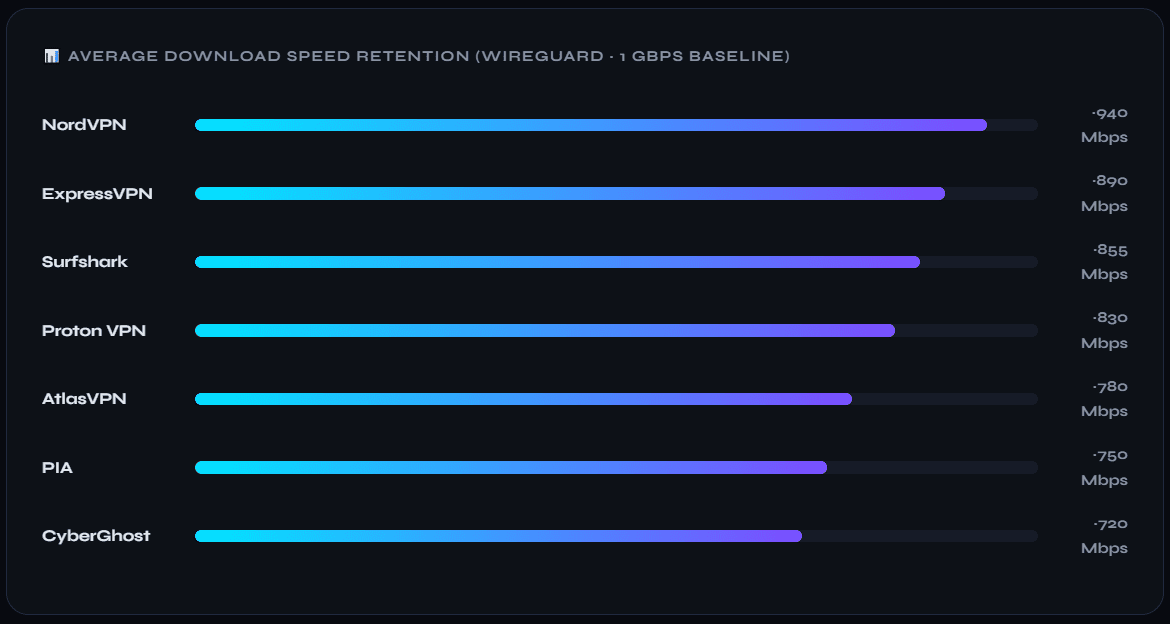
VPNs are excellent for privacy and bypassing geo-restrictions — until they start throttling your connection or breaking local apps like banking and streaming. You already know that. This guide shows you exactly how to disable VPN on iPhone, using both the native iOS Settings menu and whichever third-party app you’re running.
You’ll also find a complete walkthrough to fully remove a VPN profile from iOS, plus two quick fixes if the toggle refuses to respond.
How to Disable VPN on iPhone via iOS Settings
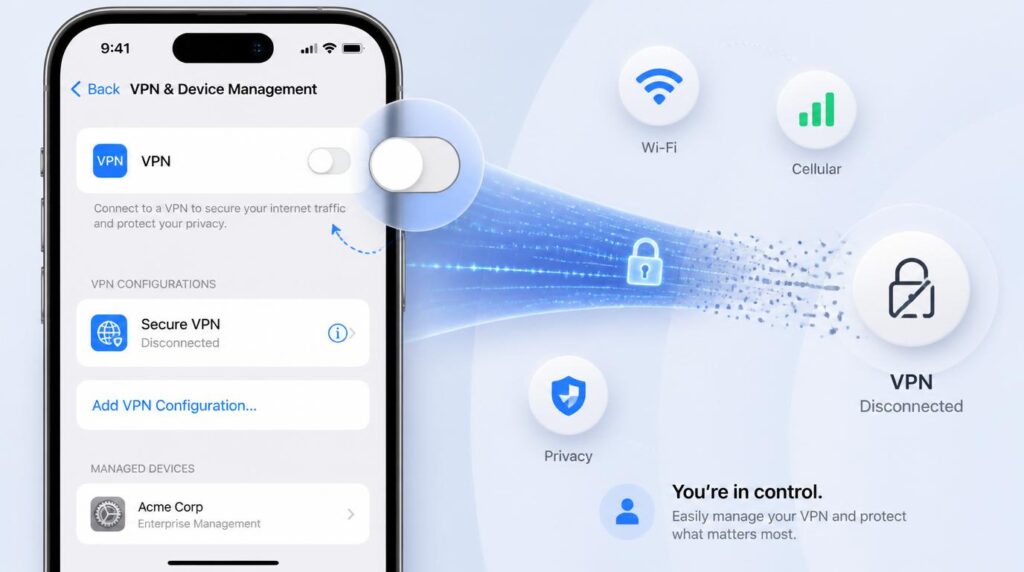
This is the fastest method for any VPN — it works regardless of which provider you use, because iOS manages all active configurations in one place.
- Open the Settings app on your iPhone.
- Scroll down and tap General.
- Tap VPN & Device Management.
- Tap VPN at the top of the screen.
- Toggle the Status switch to the off position — it turns grey when disconnected.
That’s how to disable VPN on iPhone in the fewest possible steps. The Status indicator changes from Connected to Not Connected immediately — no reboot required.
How to Turn Off VPN Within a Specific App
If your VPN was installed through a third-party app, it’s often faster to turn off VPN iPhone-side directly inside that app — especially since many providers have a large, obvious disconnect button on the home screen.
Disconnecting inside the app and toggling off in iOS settings achieve the same result — both stop traffic routing through the VPN tunnel and restore your normal wi-fi network or cellular data connection.
How to Completely Remove a VPN Profile from iPhone
If you want to remove VPN profile iOS-style — deleting the configuration entirely so it doesn’t reconnect automatically — follow these steps.
- Open Settings → General → VPN & Device Management.
- Tap VPN.
- Tap the ⓘ info icon next to the configuration you want to delete.
- Scroll to the bottom and tap Delete VPN.
- Confirm by tapping Delete in the prompt — the profile is removed instantly.
This is also the correct path if you want to how to disconnect vpn on iphone permanently rather than just pausing it between sessions.
Troubleshooting: iPhone VPN Won’t Turn Off?
A VPN toggle that refuses to budge usually points to one of two things: an always-on MDM policy pushed by a school or employer, or a stuck iOS network state. Try these fixes first.
Restart Your iPhone
Hold Side + Volume, slide to power off, wait 15 seconds, then power back on. Clears transient network states that lock the VPN toggle.
Reset Network Settings
Go to Settings → General → Transfer or Reset iPhone → Reset → Reset Network Settings. This removes all VPN profiles, Wi-Fi passwords, and APN configs — use it as a last resort.
If you’re on a managed device — school iPad, company iPhone — the always-on VPN is enforced by a Mobile Device Management profile and cannot be disabled from the device itself. Contact your IT administrator to remove the policy.
Still need a reliable VPN once you’re done troubleshooting? See the best VPN services of 2026 for a current, tested comparison of providers that won’t cause these issues.
Whether you used iOS settings, the in-app disconnect, or went further and deleted the configuration profile, your iPhone is now off the VPN tunnel. The method to choose depends on whether you want a temporary pause or a permanent removal — but either way, the process takes under a minute.
Compare top-rated providers with one-tap iOS controls and no configuration headaches.